Queyntisen Is Now an Obsidian Alternative
About four months ago I wrote a very simple terminal editor in Python: Queyntisen.
Back then the idea was small. It was an experimental editor that ran in the terminal, opened Markdown files, felt a little like Vim, and had a basic AI panel on the right. It worked, but honestly felt more like a weekend project. Then I left it alone for a long time.
Recently I reopened Queyntisen and, with AI help, pushed the project much further. It is no longer just a simple terminal editor. It’s becoming an AI-assisted, terminal-native workspace that can seriously be used for Markdown notes.
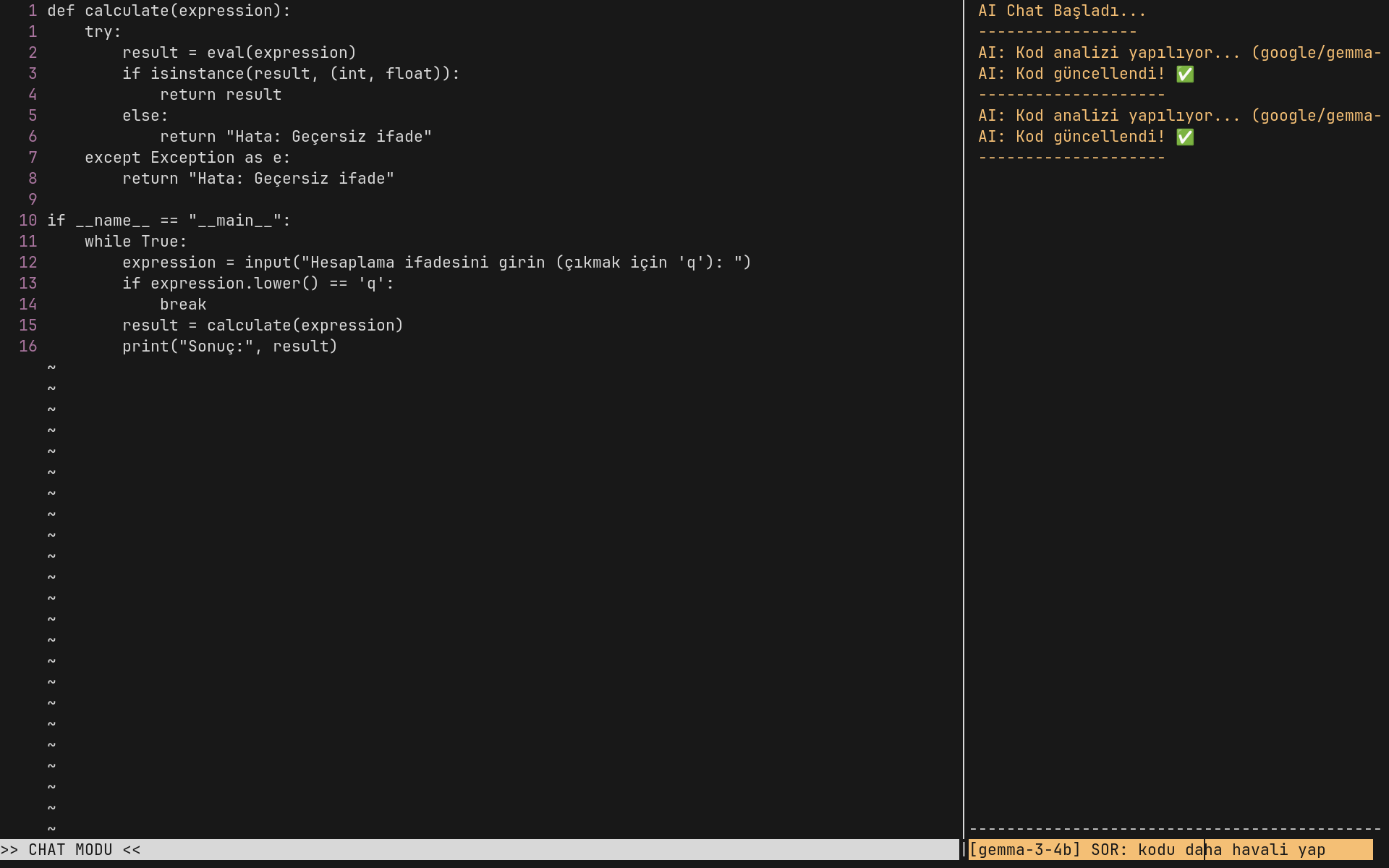
A terminal alternative to Obsidian
Obsidian is a powerful application. Its Markdown foundation, plain-file storage, and plugin ecosystem have made it indispensable for many people. But I’ve always had one small issue with it: Obsidian is ultimately an Electron desktop app.
I spend most of my day in the terminal. I code, take notes, and edit files there. Switching to a separate GUI app just to edit a note has always felt like too much.
That’s where Queyntisen comes in.
Queyntisen takes what I like about Obsidian — working with Markdown files — and brings it into the terminal. But it isn’t merely a text editor that opens in a terminal. By default, it opens a Markdown file in a clean preview. At any time, Ctrl-E switches to editing the raw Markdown source.
So you get a neat note view while reading and direct control of the source while writing.
Why is it a better fit for me?
I don’t mean “better” as an absolute claim for everyone. Obsidian has a huge ecosystem. But Queyntisen fits my own workflow better.
First, it runs in the terminal. No Electron, no heavy interface, no hunting for windows with a mouse. Open, read, edit, and save a note without leaving the keyboard.
Second, AI isn’t an add-on plugin. It’s at the center of Queyntisen. To use AI in Obsidian, you usually look for a plugin, configure it, open more panels, and sometimes deal with external tools. In Queyntisen, an AI panel is already on the right.
Press Ctrl-W to switch to the AI panel, type your request, and press Enter. Queyntisen sends the entire current Markdown file to the model as context. The model returns a reorganized note, and the result is applied directly to the editor buffer.
That feels natural for tidying a note, adding headings, turning it into a to-do list, formatting meeting notes, or making it shorter and clearer.
How does the AI integration work?
Queyntisen’s AI side is designed especially for writing Markdown. The assistant in the right panel sees the whole open note. That matters because the model gets the context of the entire document, not just a few selected lines.
For example, you can write:
1
Turn this note into a more organized project plan.
Or:
1
Fix the headings, remove repetitions, and turn action points into a task list.
The model reads the whole document and produces a better organized Markdown file. Queyntisen applies that output to the current buffer.
The nice part is that the AI request runs in the background. The editor doesn’t completely freeze. You can now configure providers inside the editor too.
Use :setup to choose a provider. OpenAI, Anthropic, DeepSeek, OpenRouter, LM Studio, Ollama, and other OpenAI-compatible endpoints are supported. For a local model you can use LM Studio or Ollama; for an API-based model you can configure it from the same menu.
Use :model to browse and select available models. Your choices are saved under ~/.config/queyntisen/config.json.
Markdown preview has become genuinely useful
The first version of Queyntisen was closer to raw text editing. Now its Markdown preview is much more capable.
It supports, among other things:
- headings,
- paragraphs,
- bullet lists,
- numbered lists,
- task lists,
- block quotes,
- horizontal rules,
- fenced code blocks,
- inline code,
- bold, italic, and strikethrough,
- links,
- images,
- autolinks,
- tables.
That makes Queyntisen more than a tool for opening and editing files. Reading notes in the terminal has become pleasant too.
Modal editing and commands
Queyntisen still uses Vim-inspired modes. Source mode has normal and insert modes. Familiar motions work: hjkl to navigate, dd to delete a line, yy to copy one, p to paste, and u to undo.
The basic commands are:
1
2
3
4
5
6
:w
:q
:wq
:x
:setup
:model
In the : command line, Tab also autocompletes commands. A small detail, but one that feels great in a terminal editor.
Returning with AI after four months
For me, the most interesting part of the project is not only Queyntisen itself but how it was developed.
Four months ago I wrote it as a very basic Python experiment and then set it aside. When I reopened it recently, I could see that it might become something good.
At that point, AI was not just a feature inside the editor; it became part of the development process. It sped up improvements to the code structure, Markdown rendering, setup menu, model selection, README, and installation flow.
What had been a one-file experiment became an installable, usable, and presentable open source project.
Installation
To try it:
1
2
3
4
git clone https://github.com/fMert/Queyntisen.git
cd Queyntisen
chmod +x install.sh
./install.sh
After installation, reopen your terminal and run:
1
queyntisen notes.md
To run it manually:
1
2
pip install -r requirements.txt
python3 editor.py notes.md
Conclusion
Queyntisen is still young. It doesn’t have Obsidian’s huge ecosystem, plugin marketplace, or mobile app. But it has one clear advantage for me: it fits the way I work.
It stays in the terminal, puts Markdown at the center, and treats AI as part of the core workflow rather than a plugin added later.
If you like keeping notes as Markdown and the idea of Obsidian, but want a lighter, terminal-based, AI-native tool instead of a large Electron desktop app, Queyntisen aims to fill that gap.
The source code is here: